
Athlete setup
Get your training to your coach
Five steps, about ten minutes, done once. After this, every session you record reaches your coach on its own.
Want it one click at a time?
The step-by-step version shows a picture of exactly what to press at every step, from your coach's link to connected.
What you need
- Your sports watch or bike computer account (Garmin, Polar, Suunto, Coros, Wahoo and others)
- The personal Black Box link your coach sent you, by WhatsApp or email
- An email address
Wingman reads your training from a free service called intervals.icu, which collects it from your watch. You start with your Black Box link; your Black Box page then takes you through intervals.icu.
Step 1: Open your Black Box link and choose a password
- Open the personal link your coach sent you.
- Choose a password of at least 10 characters and press Save and open my page. From now on you sign in with your email and this password.
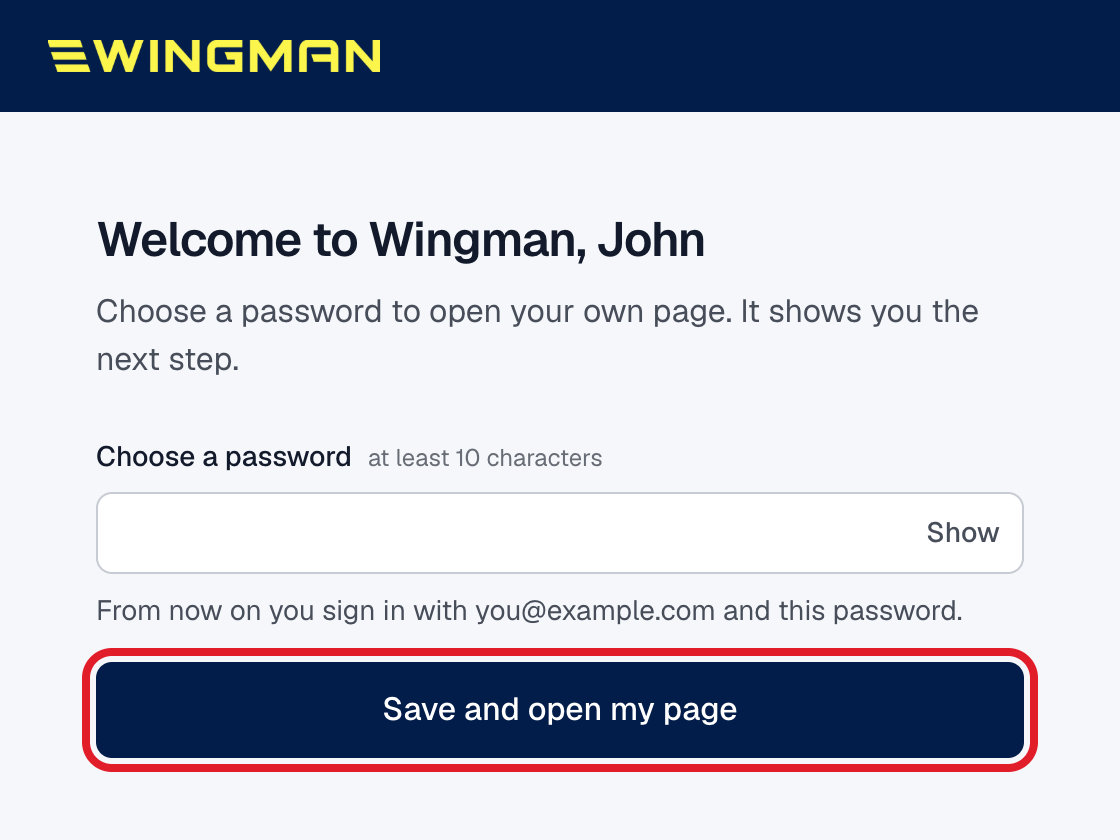
- You land on your own Black Box page, with a box called Finish setting up. Leave it open: steps 2 and 3 happen on intervals.icu, in a new tab, and you come back here for step 4.
- Password not working later? On the sign-in page, press Email me a sign-in link and you are sent a link that signs you straight in.
Step 2: Create your free intervals.icu account
- Go to intervals.icu and sign up with your email.
- It is free. You do not need the paid supporter plan.
- Already have an account? Skip to step 3.
Step 3: Connect your watch to intervals.icu
- In intervals.icu, open Settings in the left menu, then the Connections tab.
- Find your watch brand and connect it. You sign in to that brand and allow access.
- Leave every switch on when the brand asks what to share. On Garmin that is Activities, Daily Health Stats and Historical Data.
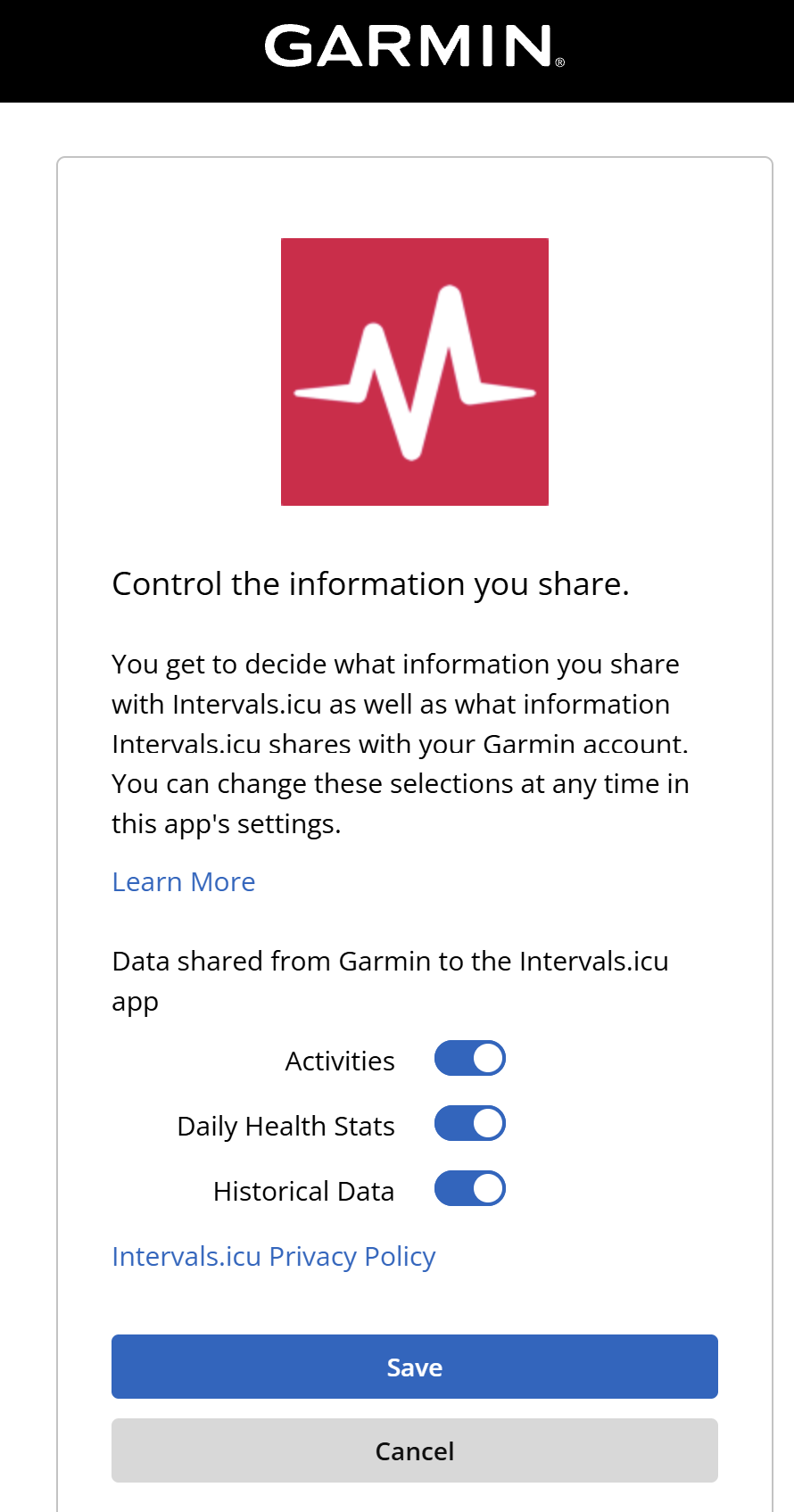

- Tick Download activities and Download wellness data. Wellness is your sleep, resting heart rate and HRV.
- Press Download old data (on Garmin, also Import all Garmin data). Do not skip this: ticking the boxes only covers new sessions, and this is what brings your past training across. It can take from a few minutes to a few hours.
- If you see Permission Denied, a Garmin switch is off. Follow the Garmin link in that message, turn on all three, save, then press Download old data again.
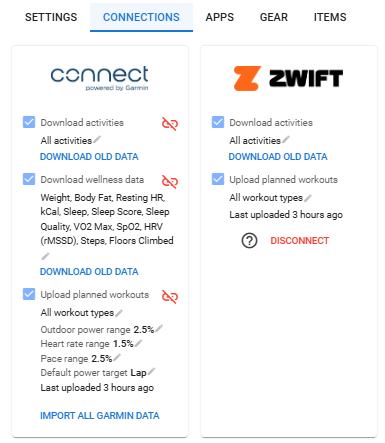
Connect your watch brand directly. Do not rely on Strava: sessions that reach intervals.icu through Strava cannot be passed on to your coach.
Step 4: Back on your Black Box page, connect intervals.icu
- Switch back to the Wingman tab from step 1. Closed it? Sign in again with your email and password. Your page has a short list called Finish setting up. It ticks itself off as each part comes through, and tells you exactly what is still missing.
- Press Connect intervals.icu in that list.
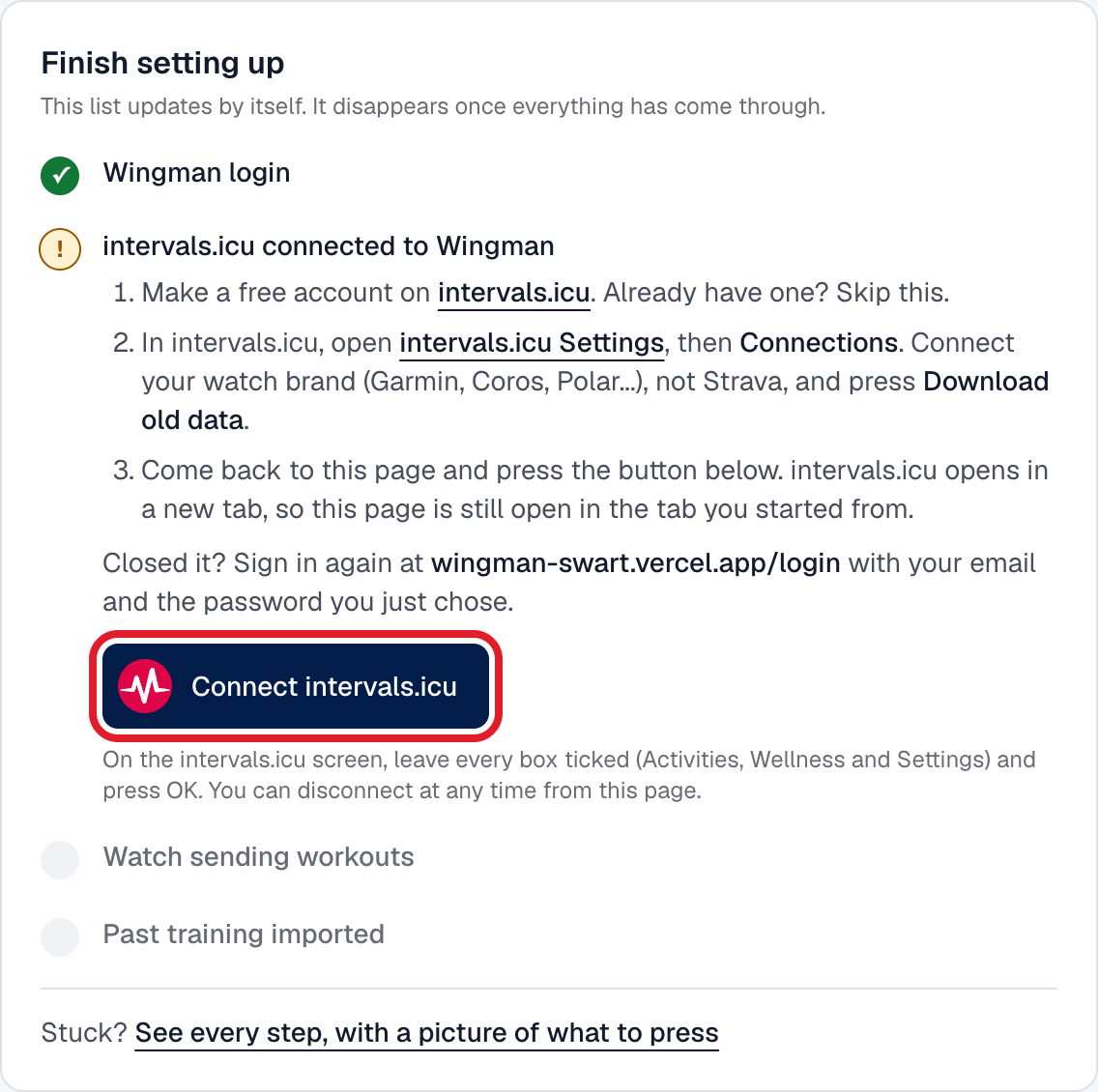
- intervals.icu asks what Wingman may do. It should look like this:
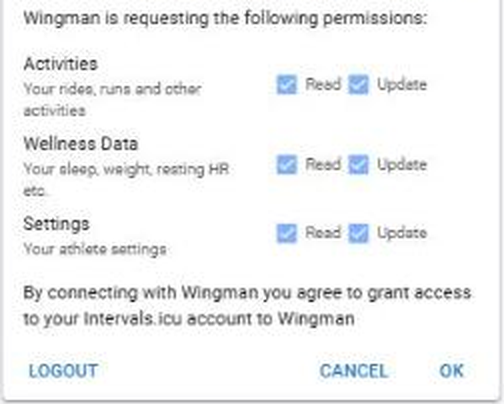
- Every box should be ticked: Read and Update for Activities, Wellness Data and Settings.
- Read is how your sessions and recovery reach your coach.
- Update lets your coach correct your training zones and build on your training from Wingman.
- Leave them all ticked and press OK.
You can disconnect at any time from your Black Box page. Wingman deletes its access straight away.
Step 5: Add Wingman to your home screen
Wingman runs in your phone's browser, and you can keep it on your home screen like any other app. Do this once and it is always one tap away. See it tap by tap, with pictures.
iPhone or iPad
- Open your Black Box page in Safari or Chrome.
- Tap the Share button, the square with an arrow pointing up. It is at the bottom in Safari and at the top in Chrome.
- Scroll down and tap Add to Home Screen.
- Tap Add.
Android
- Open your Black Box page in Chrome.
- Tap the menu, the three dots at the top right.
- Tap Add to Home screen (on some phones, Install app).
- Tap Add.

The Wingman icon appears with your other apps. Tap it and you are straight on your training, with no address to type.
You're in
Your past training arrives over the next few hours, as your watch brand sends it to intervals.icu. New sessions follow about a minute after your watch syncs. The Finish setting up list disappears once everything has come through; if it is still there, it says what to do.
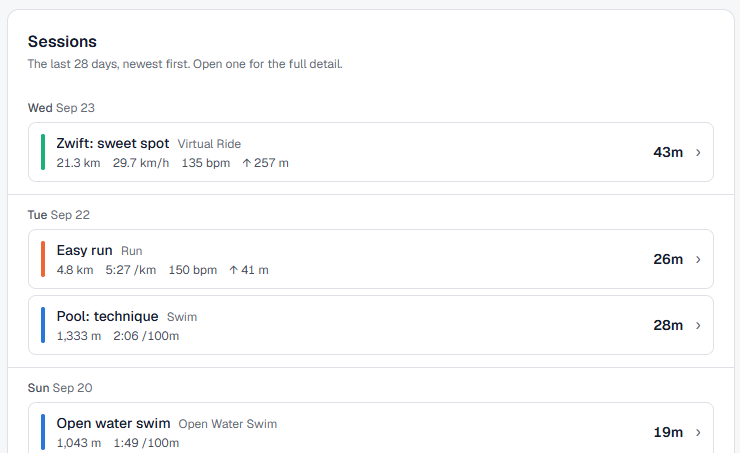
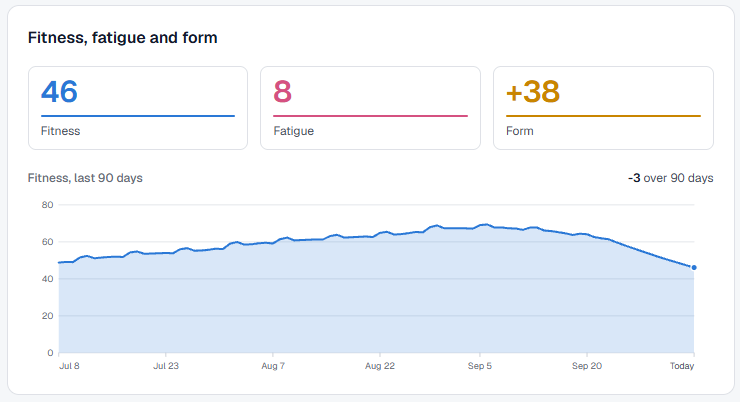
Your fitness, fatigue and form chart appears once your coach has confirmed your training zones.
If something goes wrong
- My link says I am already set up
- You have chosen a password before. Sign in with your email and that password, or reset it below.
- I forgot my password
- On the sign-in page, press Forgot password? and we email you a reset link.
- My sessions are not showing up
- Check step 3: your watch brand must be connected on the intervals.icu Connections tab with Download activities ticked, and Download old data pressed for anything before the day you connected. If your sessions only reach intervals.icu through Strava, connect the watch brand directly.
- I want to stop sharing
- On your Black Box page, open Disconnect intervals.icu. Wingman deletes its access straight away.
Wingman Multisport Coaching