
On your phone
Get Wingman BlackBox on your phone
Wingman runs in your phone's browser, and you can keep it on your home screen like any other app. Four taps, done once. In each picture, the red ring is what to tap.
iPhone or iPad
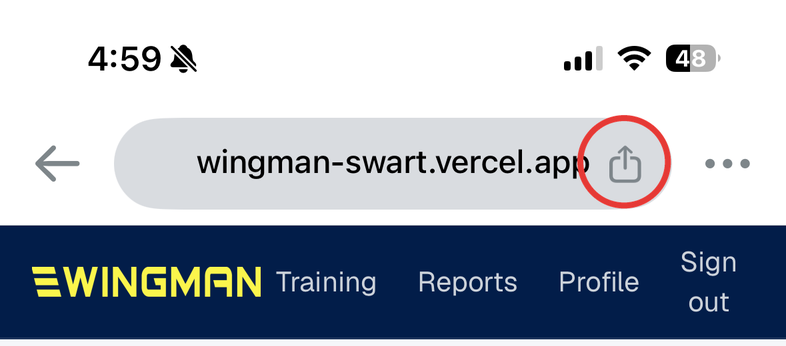
Step 1: Open Wingman and tap Share
Go to your Black Box page and sign in. Tap the Share button, the square with an arrow pointing up. In Chrome it is in the address bar at the top; in Safari it is at the bottom of the screen.
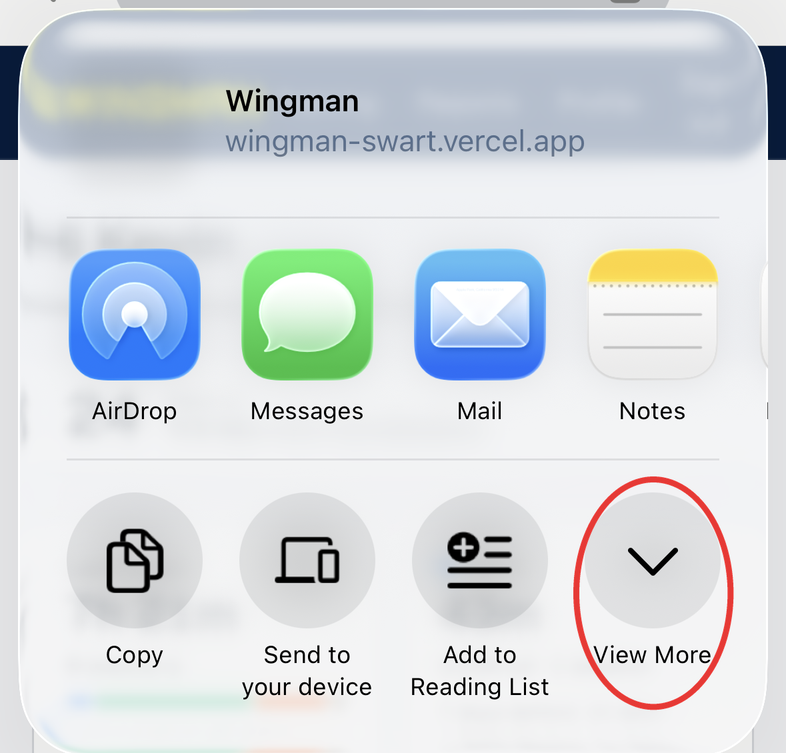
Step 2: Tap View More
A sheet slides up. In Chrome, tap View More to see the full list. In Safari, skip this and scroll down the sheet instead.
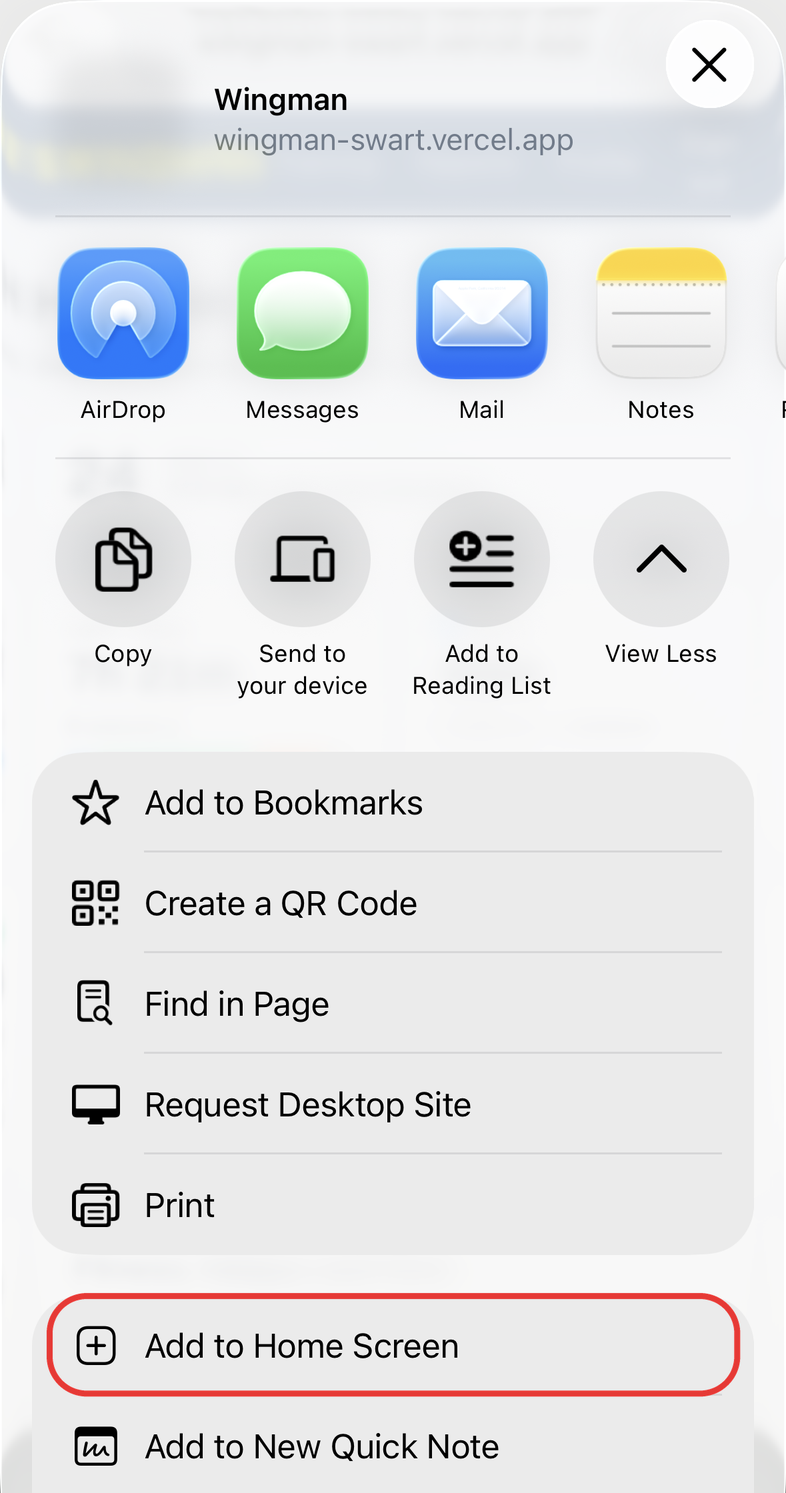
Step 3: Tap Add to Home Screen
It is near the bottom of the list, so you may need to scroll down.
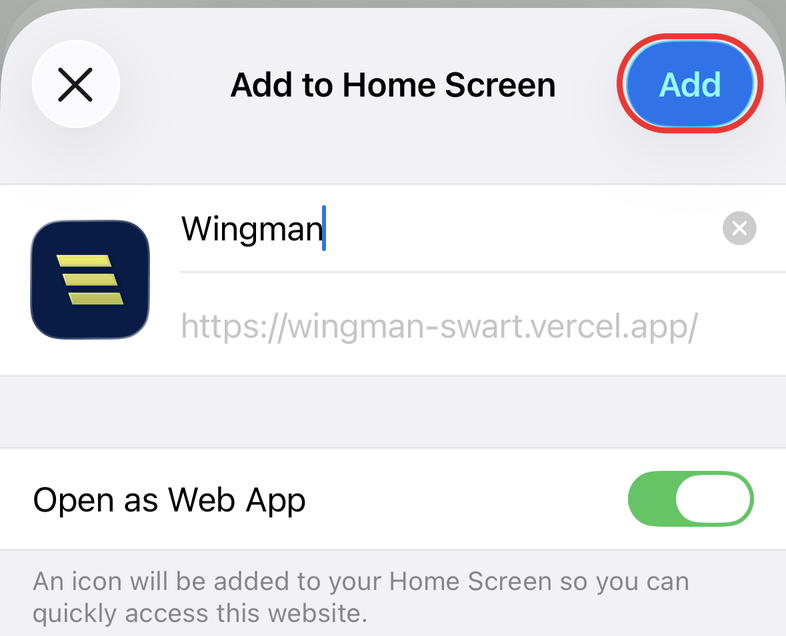
Step 4: Tap Add
Leave the name as Wingman and leave Open as Web App switched on, so it opens full screen like an app. Tap Add at the top right.
Done
The Wingman icon is now with your other apps. Tap it and you are straight on your training, with no address to type. The first time, sign in with your email and password.
Android
- Open your Black Box page in Chrome and sign in.
- Tap the menu, the three dots at the top right.
- Tap Add to Home screen (on some phones, Install app).
- Tap Add.
Not set up yet? Follow the athlete setup guide first.
Wingman Multisport Coaching