
Step by step
Set up Wingman for the first time
Twelve steps, about ten minutes, done once. Follow them in order. In each picture, the red ring is what to press.
How it fits together
Your watch sends your training to a free service called intervals.icu, and Wingman reads it from there. So you set up your Black Box login (steps 1 to 3), connect your watch to intervals.icu (steps 4 to 9), then connect intervals.icu to Wingman (steps 10 to 12).
Step 1: Open the personal link your coach sent you
It comes by WhatsApp or email. Open it on your phone or computer. Cannot find it? Check your spam folder, then ask your coach to send it again.
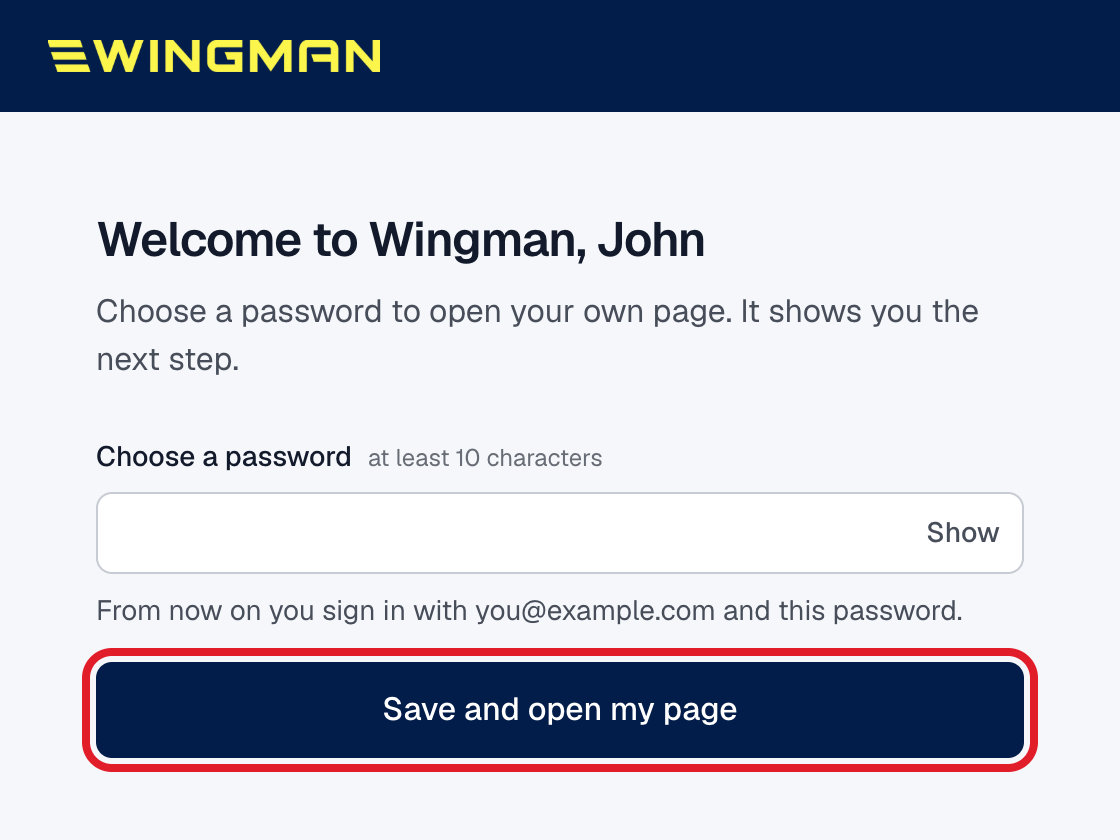
Step 2: Choose a password and press Save and open my page
The link opens a page with your name on it. Use at least 10 characters, and press Show to check what you typed. Your email and this password are how you sign in to Wingman from now on.
Step 3: You're on your own Black Box page. Leave it open
A box called Finish setting up lists what is left. The next six steps happen on intervals.icu, in a new tab, and you come back to this page at step 10.
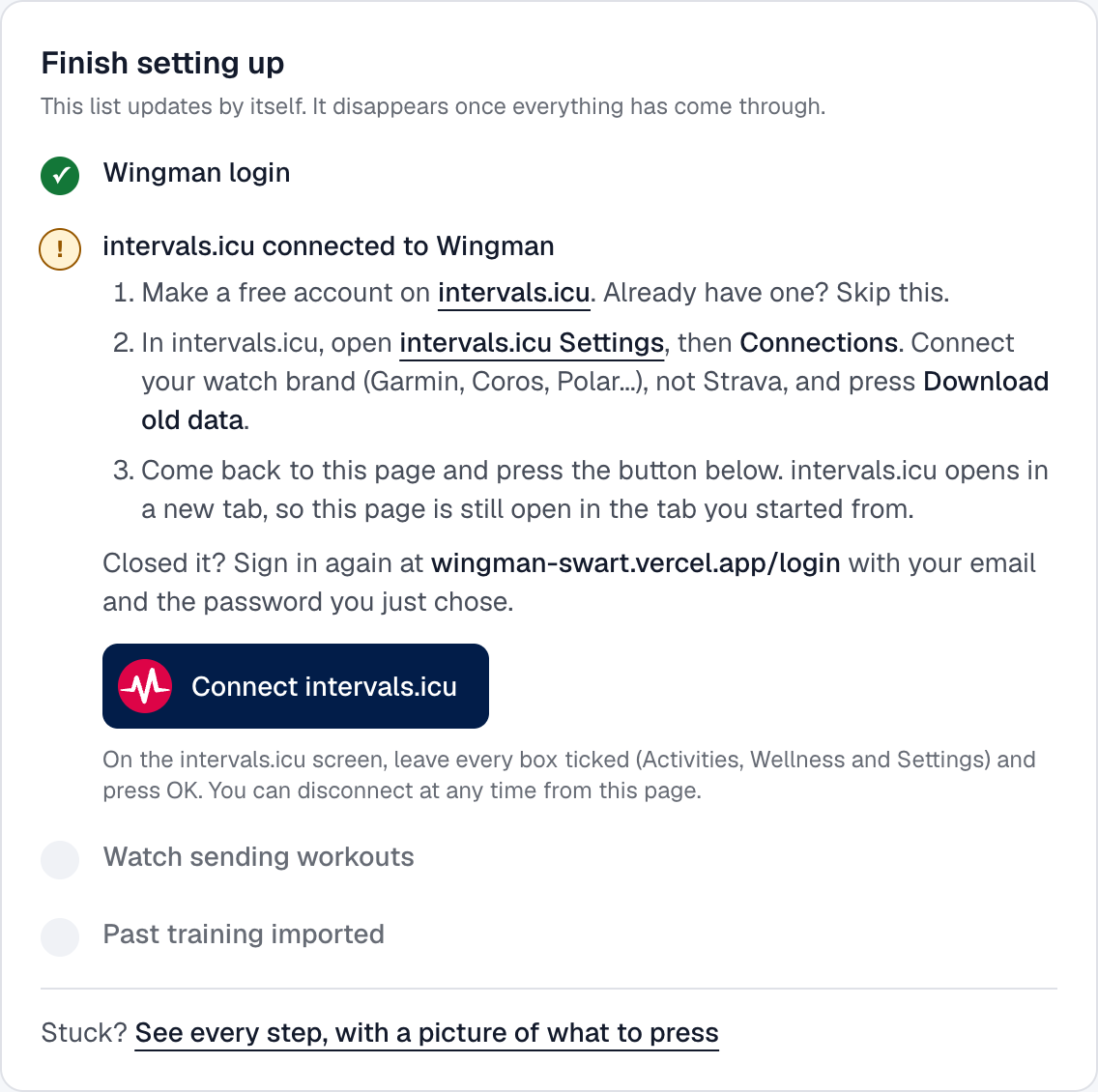
Step 4: Go to intervals.icu and press Sign Up Free
In a new tab, open intervals.icu and press Sign Up Free at the top right. Already have an account? Press Login instead and go to step 6.
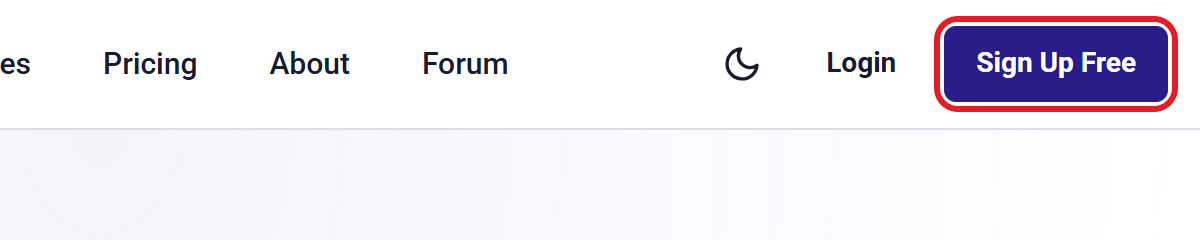
Step 5: Fill in the form and press Signup
Enter your email, choose a password, and fill in your name, max heart rate and weight. A rough max heart rate is fine; your coach sets your real training zones later. Tick Verify you are human, then press Signup.
It is free. You do not need the paid supporter plan. This is a separate login from Wingman, so note the password.
Step 6: Open Settings, then Connections
In the menu on the left, press Settings. Then press the Connections tab at the top. On a phone, the menu is behind the three lines at the top left.
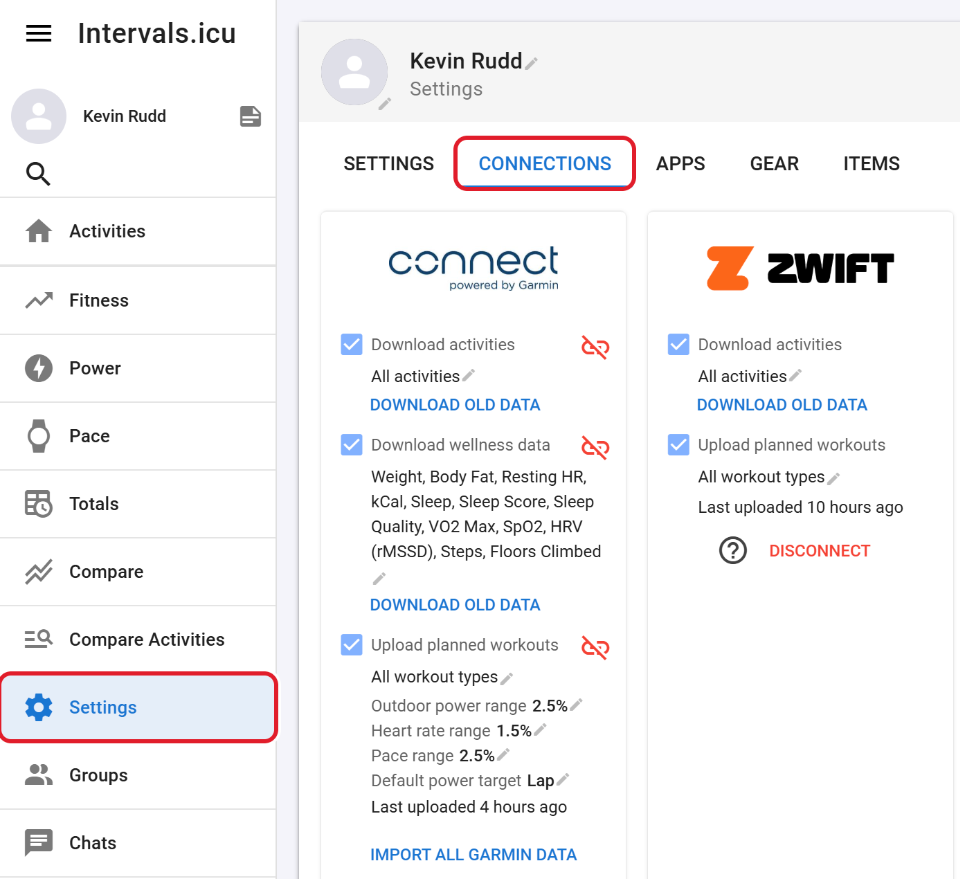
Step 7: Find your watch brand and tick Download activities
Each brand has its own tile: Garmin, Polar, Suunto, Coros, Wahoo and others. On your brand's tile, tick Download activities. You are sent to that brand to sign in and allow access.
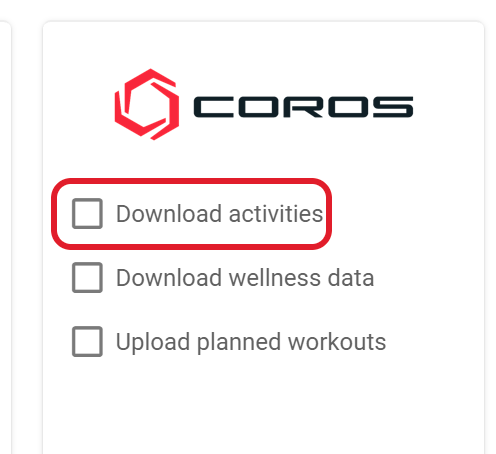
Do not use Strava for this. Connect the watch brand itself. Sessions that reach intervals.icu through Strava cannot be passed on to your coach.
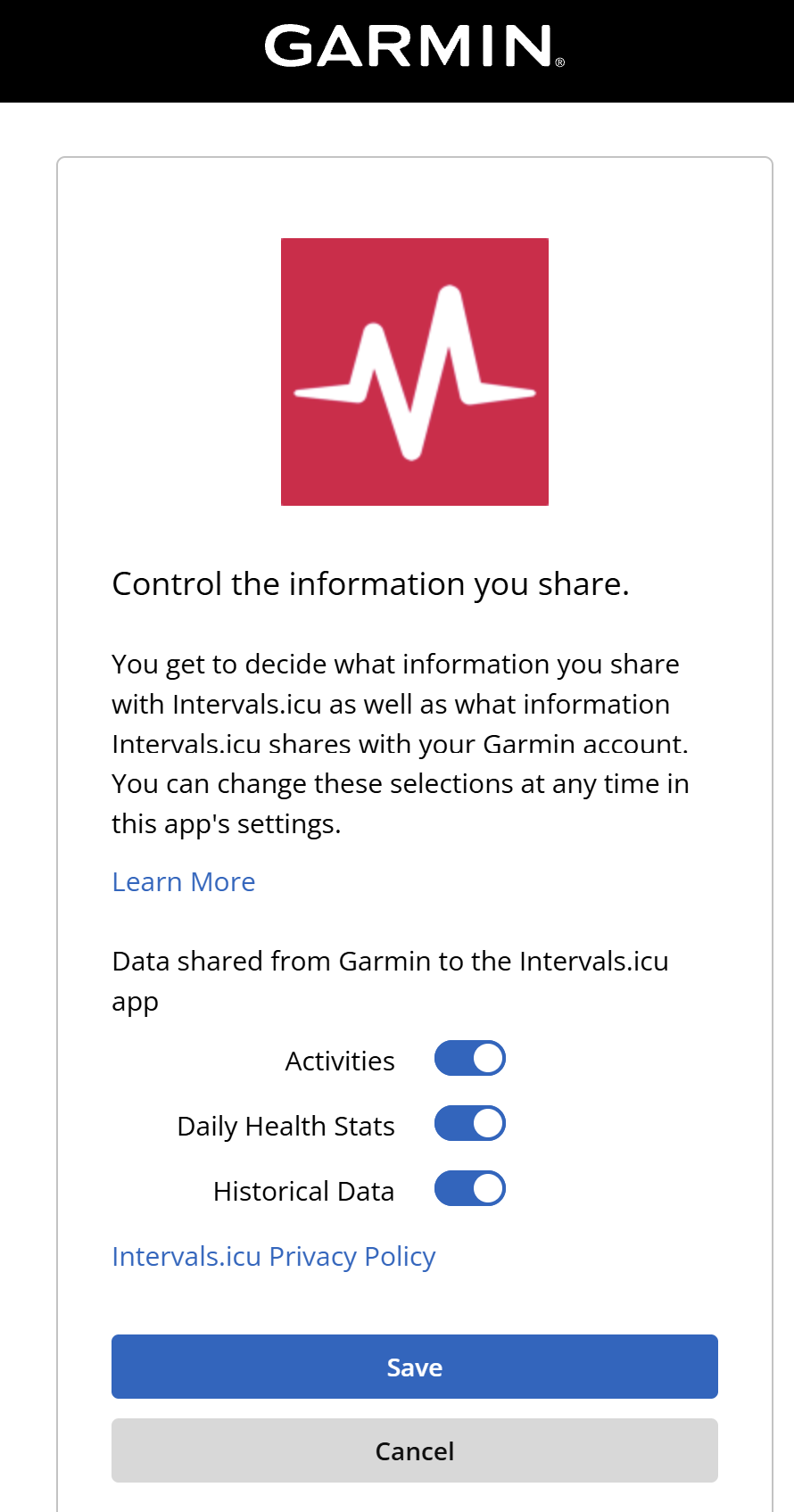
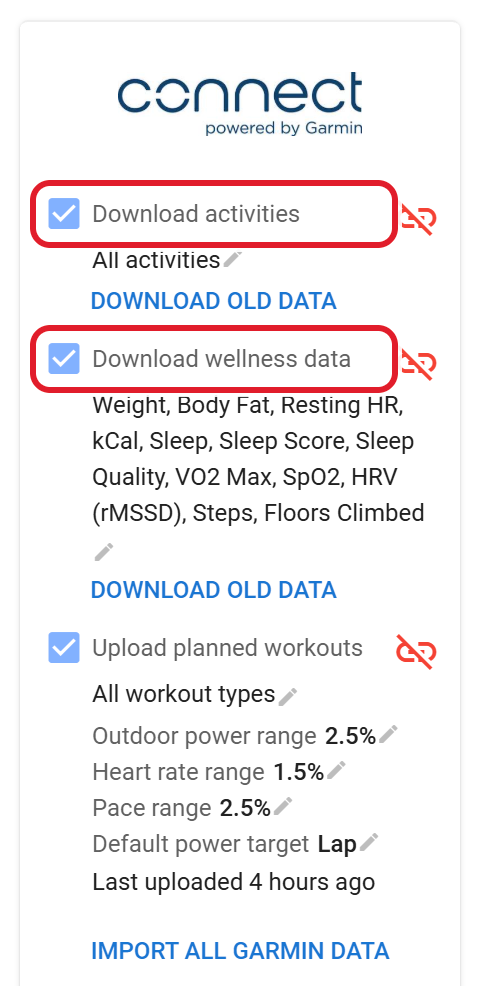
Step 8: Leave every switch on, then check both boxes are ticked
When your watch brand asks what to share, leave every switch on. On Garmin that is Activities, Daily Health Stats and Historical Data.
You land back on the Connections tab. Make sure Download activities and Download wellness data are both ticked. Wellness is your sleep, resting heart rate and HRV.
Step 9: Press Download old data
This is the step most people miss. Ticking the boxes only covers new sessions. To bring your past training across, press every Download old data link on your tile. On Garmin, also press Import all Garmin data at the bottom.
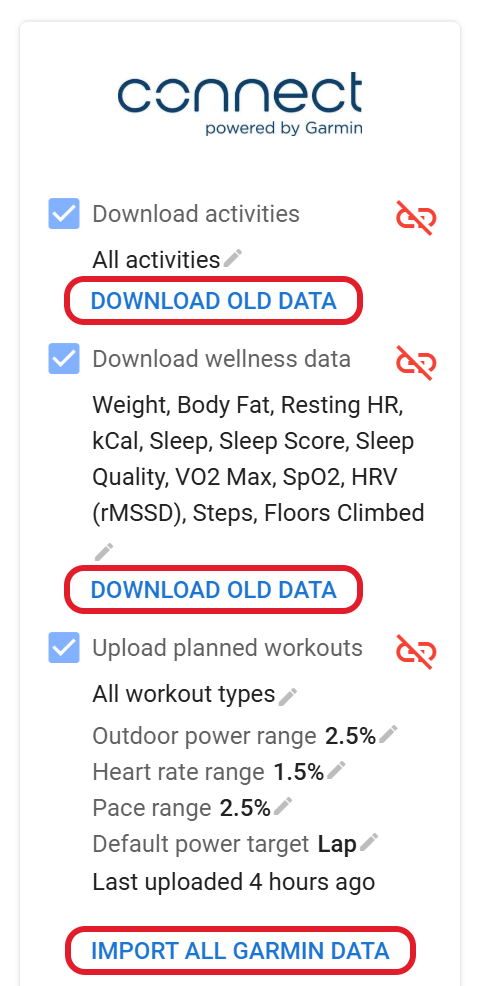
Your history can take from a few minutes to a few hours to arrive.
If it says Permission Denied, a Garmin switch is off. Follow the Garmin link in that message, turn all three switches on, save, and press Download old data again.
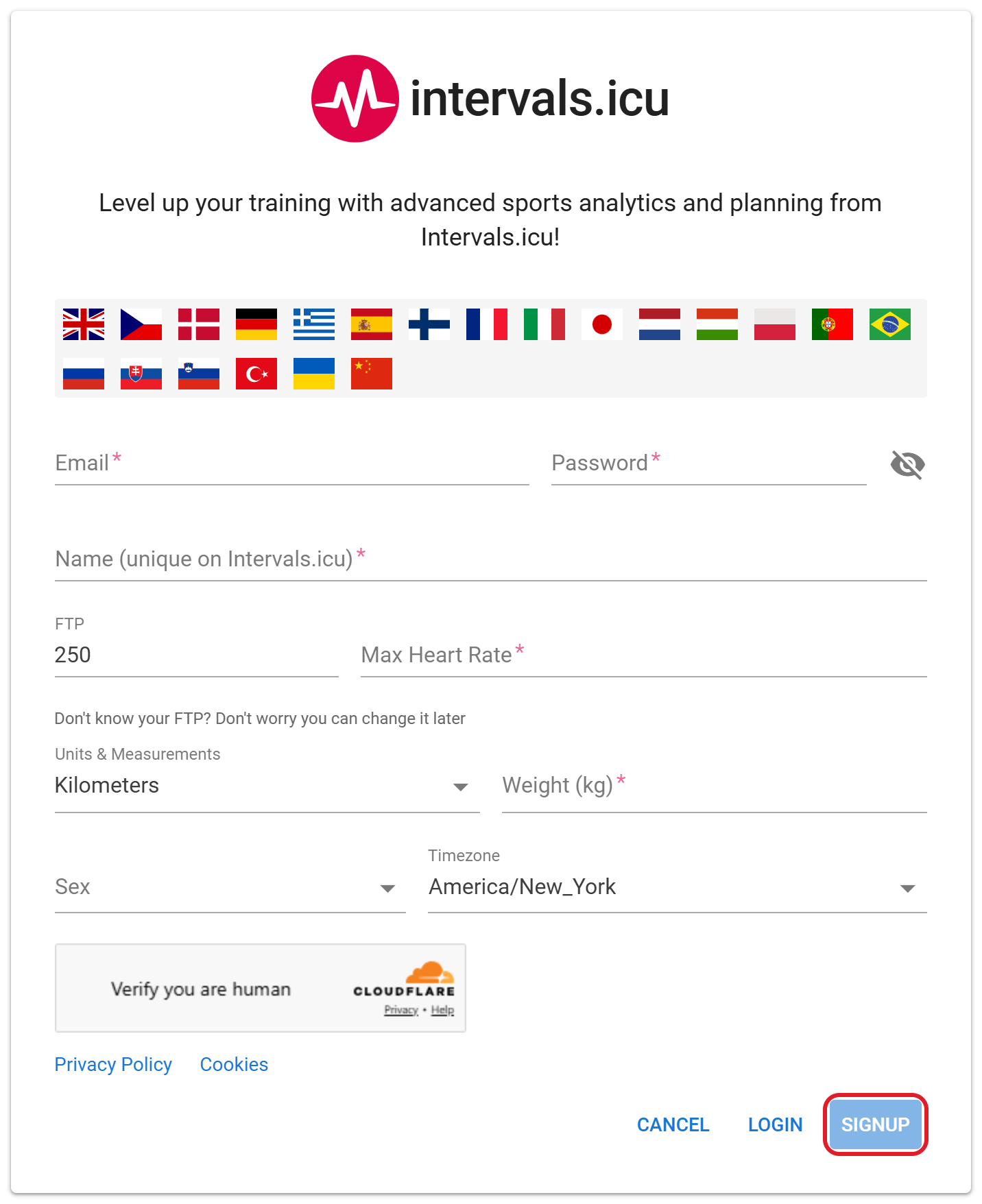
Step 10: Back on your Black Box page, press Connect intervals.icu
Go back to the Wingman tab from step 3. Closed it? Sign in again with your email and password. Your page shows a list called Finish setting up. Press Connect intervals.icu in it. The steps above the button are the ones you have just done.
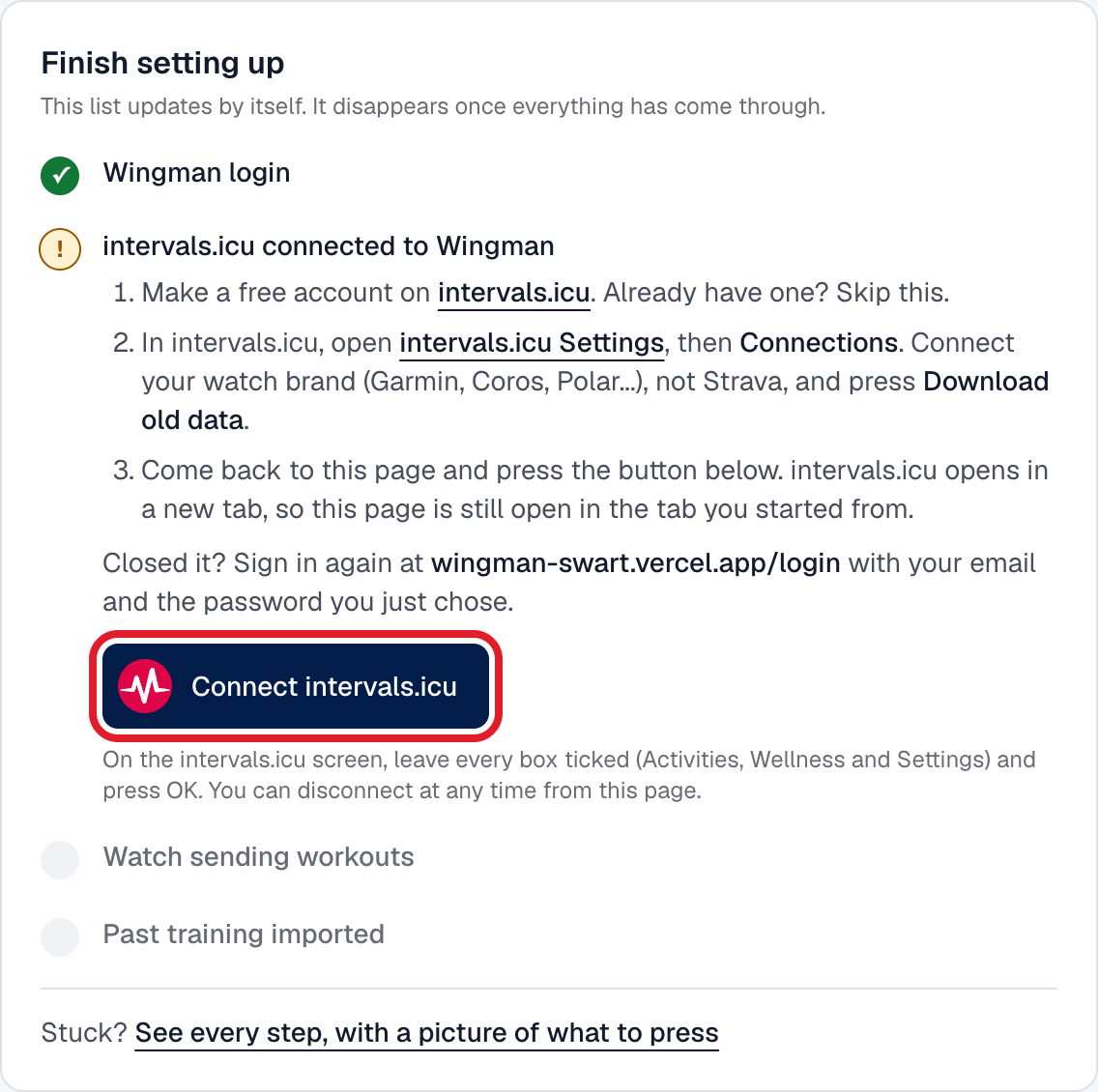
Step 11: Leave every box ticked and press OK
intervals.icu asks what Wingman may do. Leave all six boxes ticked and press OK. If it asks you to log in first, use your intervals.icu email and password from step 5.
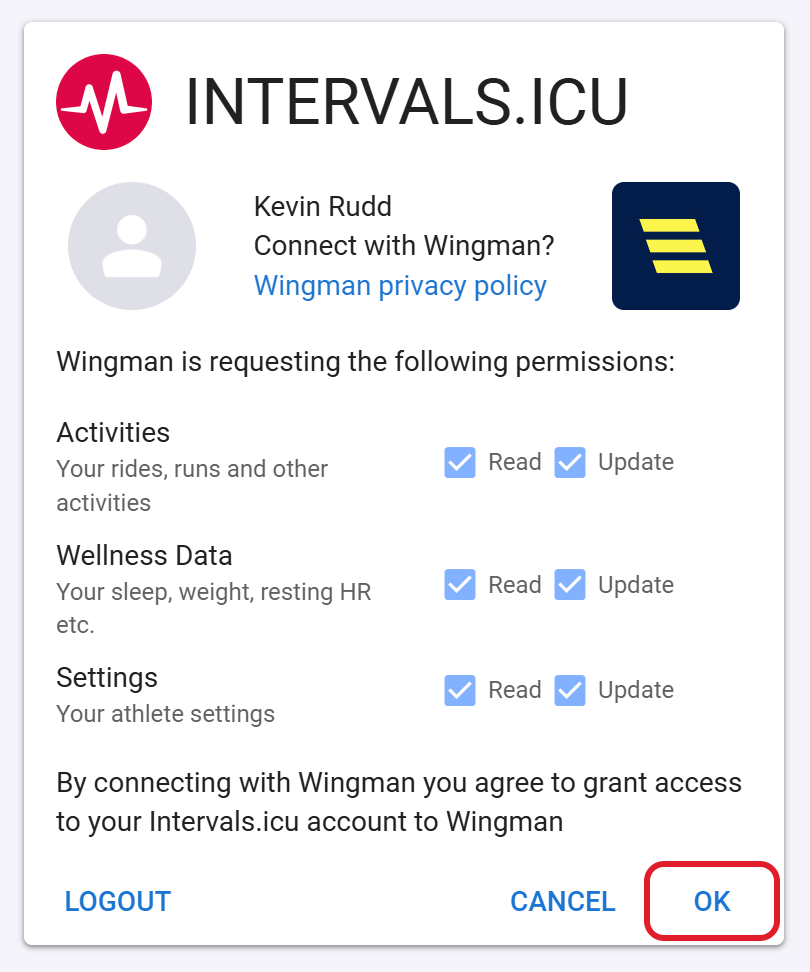
Read is how your sessions and recovery reach your coach. Update lets your coach correct your training zones.
Step 12: You're back on your page, connected
That is it. intervals.icu sends you straight back to your Black Box page, which says You're connected.
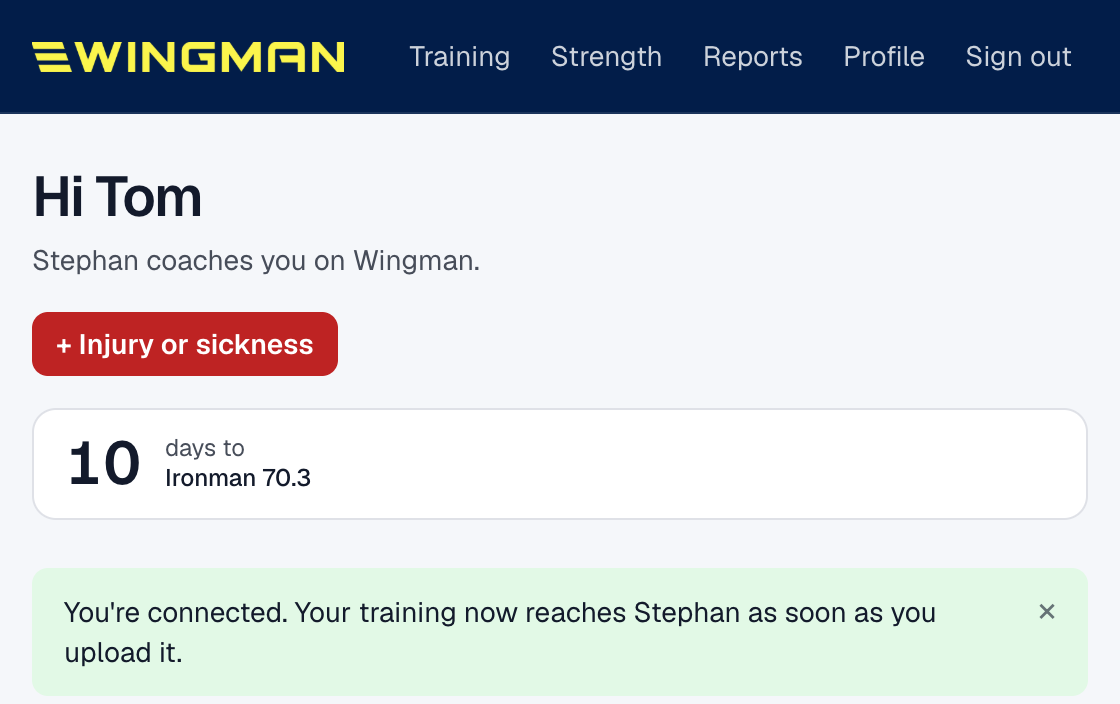
Connected, but nothing is showing?
- No past training. Go back to step 9 and press Download old data. Nothing needs redoing in Wingman afterwards.
- No sessions at all. Your watch brand is not connected in intervals.icu, or only Strava is. Do steps 6 to 8 with the watch brand itself.
- It was only a few minutes ago. History can take a few hours. The Finish setting up list on your Black Box page ticks itself off as each part arrives, and says what is still missing.
Signing in again later
Go to the sign-in page, enter the email your coach has for you and your Black Box password from step 3, and press Sign in.
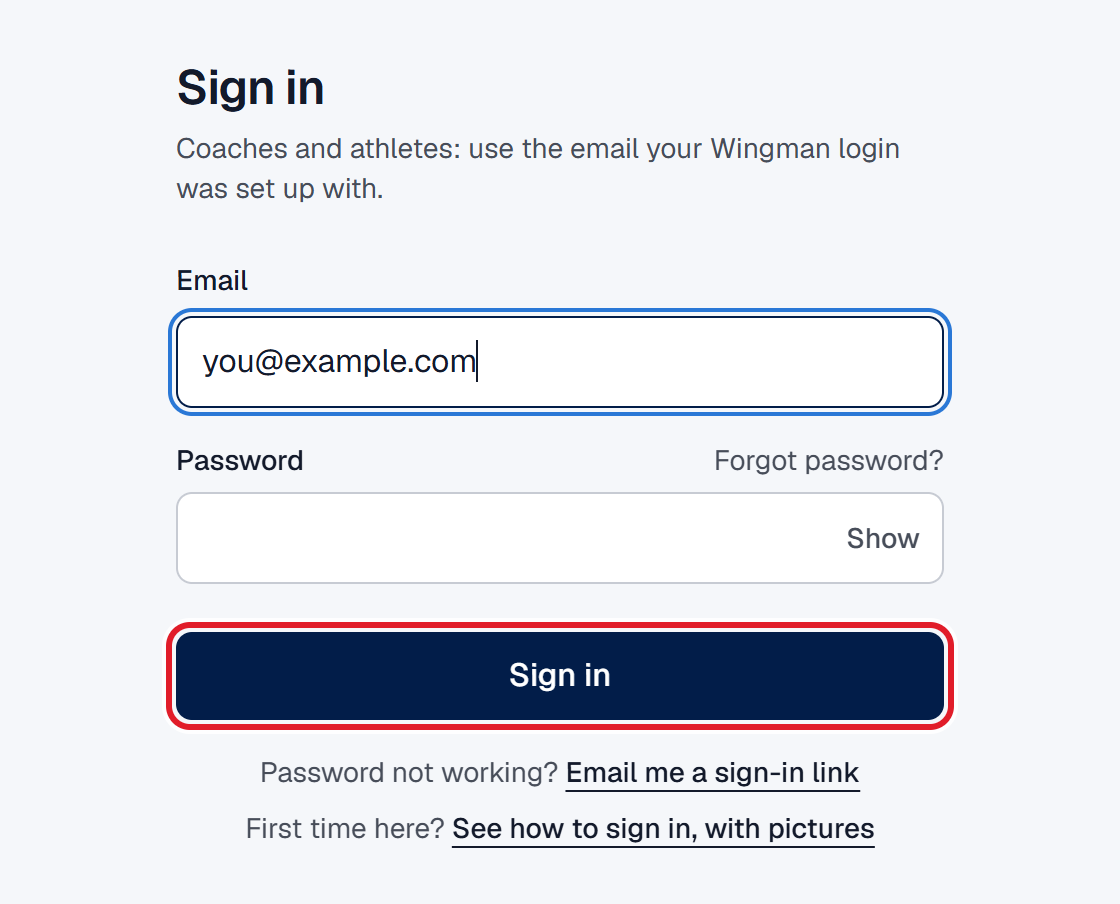
Cannot get in? Both ways back are on that same page.
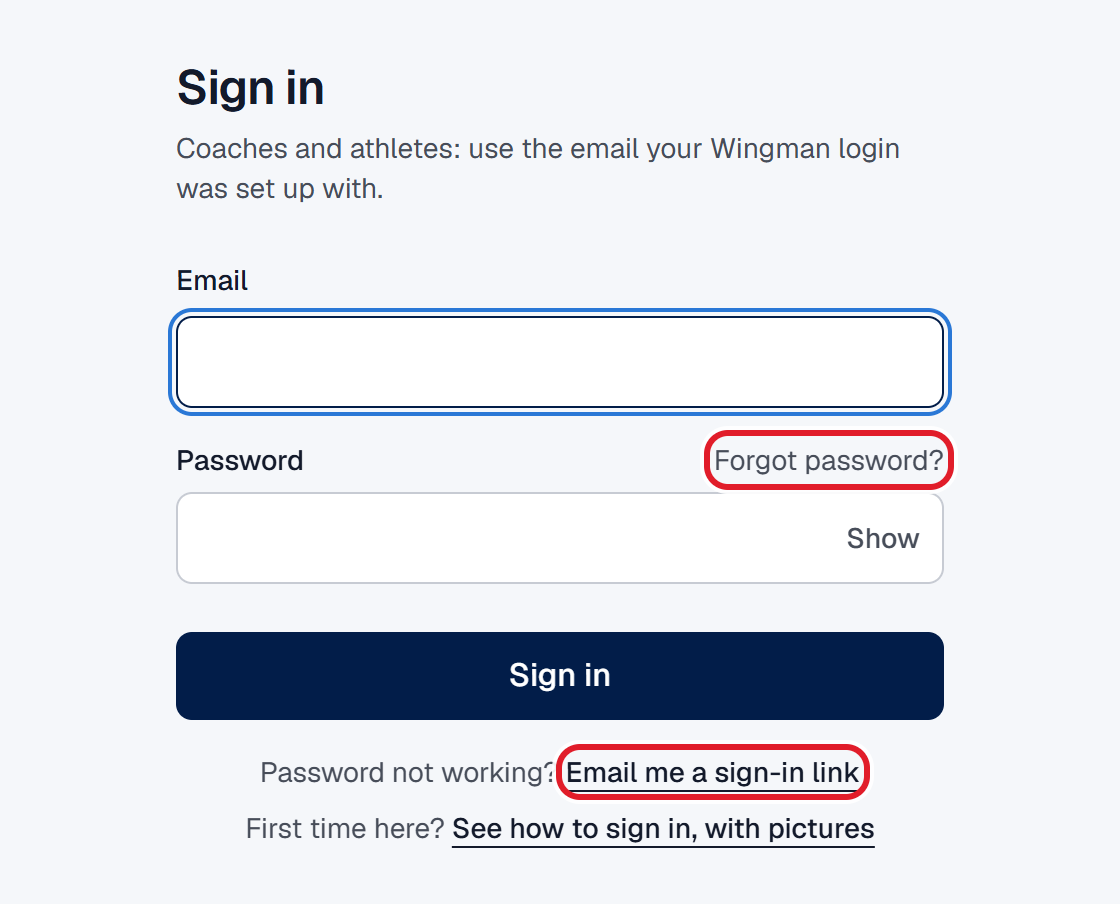
- I forgot my password
- Press Forgot password? above the password box. We email you a link to choose a new one.
- My password is not working and I just want in
- Press Email me a sign-in link under the button. The link in that email signs you straight in, with no password.
- My welcome link says I am already set up
- You have chosen a password before. Sign in with your email and that password, or use one of the two links above.
- No email arrives
- Check your spam folder. If it is not there, ask your coach to check the address they have for you.
Next: put Wingman on your phone's home screen.
Wingman Multisport Coaching